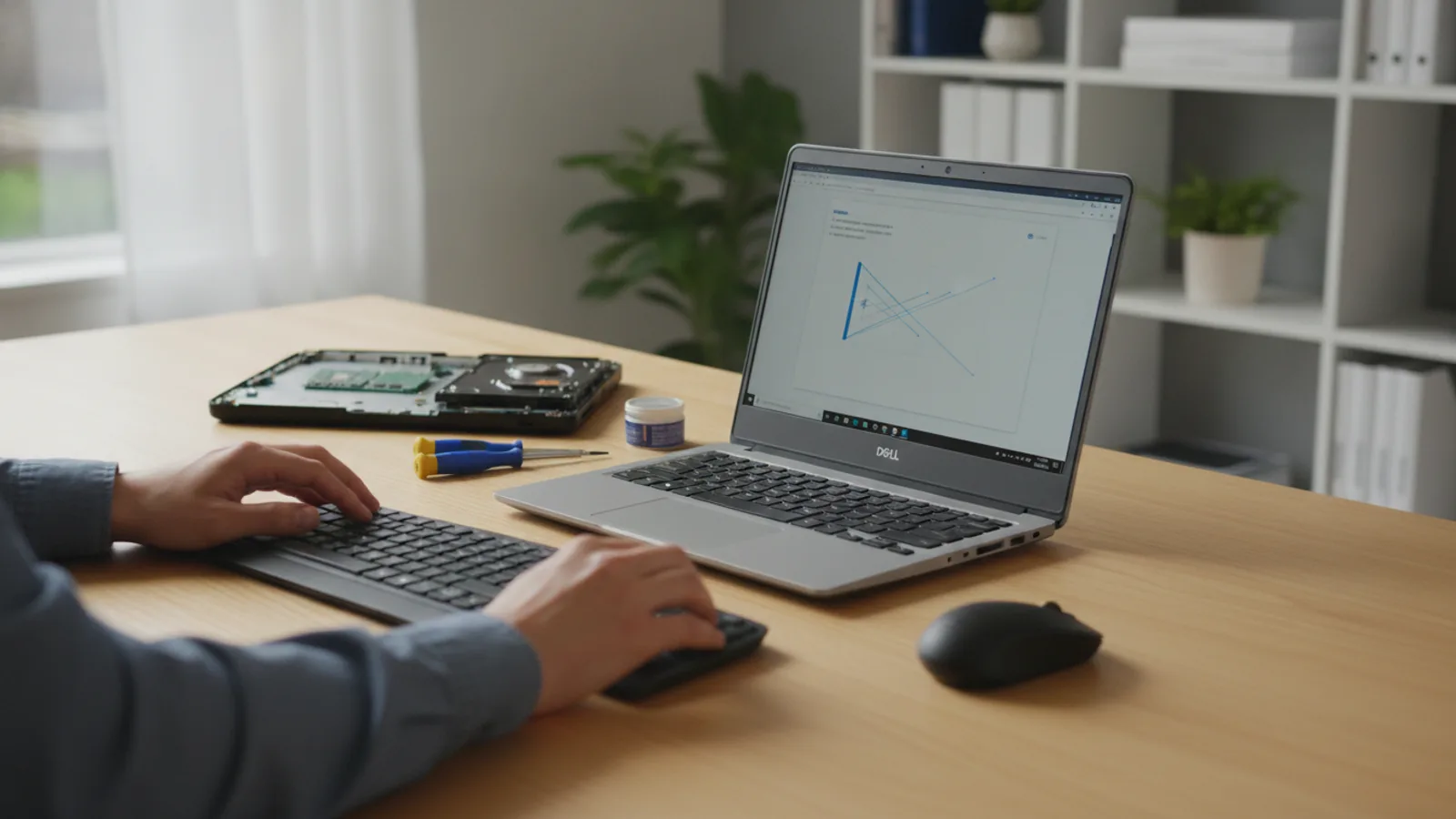
How To Fix A Slow Computer
A practical step-by-step guide to how to fix a slow computer, including preparation, instructions, common issues, tips, and next steps.
How To Fix A Slow Computer
A computer that runs slowly can be incredibly frustrating, affecting everything from work and school to simple web browsing. This guide provides a clear, step-by-step process to diagnose and fix the most common causes of a slow computer. We will walk you through practical software tweaks, system cleanup tasks, and security checks to help restore your PC’s speed and performance. These steps are designed for beginners and don't require any special technical skills to get started.
Fast Answer
- Disable Startup Programs: Stop non-essential apps from launching when you turn your computer on.
- Free Up Disk Space: A full hard drive can significantly slow down your entire system.
- Scan for Malware: Hidden malicious software is a very common cause of sudden performance loss.
Before You Start
- Administrator Access: You will need the password for an administrator account on the computer to change system settings and install or remove software.
- Stable Internet Connection: Required for downloading system updates, drivers, and security software definitions.
- External Hard Drive or Cloud Storage: This is highly recommended for backing up your important files before you begin.
Step-by-Step Instructions
Reboot Your Computer
This might sound too simple, but it's the first thing you should always try. Restarting your computer clears out its temporary memory (RAM) and stops any background processes that may have built up over time and started to bog things down. Many minor software glitches that cause slowdowns are resolved with a simple reboot.
Instead of just closing the lid of your laptop or putting it to sleep, go to the Start Menu, click the Power icon, and select Restart. Let the computer shut down and start back up completely before you assess its speed.
Disable Unnecessary Startup Programs
Many applications are configured to start automatically when your computer boots up. While this is useful for antivirus software or cloud storage, too many startup programs can dramatically increase boot time and consume valuable system resources in the background. You can easily manage which programs are allowed to run on startup.
On Windows, press Ctrl + Shift + Esc to open the Task Manager. Click on the "Startup" tab (or "Startup apps" in Windows 11). You will see a list of programs, their publisher, and their "Startup impact" rating. To stop a program from launching at startup, right-click on it and select "Disable." Be careful not to disable critical system utilities or your antivirus software.
Scan for Malware and Viruses
Malicious software, including viruses, spyware, and adware, is a primary cause of a suddenly slow computer. These programs run hidden in the background, consuming your computer's processing power and memory, tracking your activity, and sometimes causing system instability. Running a full system scan can find and remove these threats.
You don't necessarily need to buy new software for this. Windows includes a capable tool called Windows Security (or Windows Defender). To use it, open the Start Menu, type "Windows Security," and open the app. Go to "Virus & threat protection," click on "Scan options," select "Full scan," and then click "Scan now." This process can take over an hour, so let it run uninterrupted.
Free Up Disk Space
Your operating system needs free space on your main hard drive (usually the C: drive) to function correctly. It uses this space for temporary files, system updates, and as "virtual memory" when your RAM gets full. If your drive is more than 90% full, you will experience significant slowdowns.
A great starting point is to use the built-in Disk Cleanup tool on Windows. Search for "Disk Cleanup" in the Start Menu and run it. It will calculate how much space you can free up. Be sure to check boxes for "Temporary Internet Files," "Downloads," and "Recycle Bin." For a deeper clean, click the "Clean up system files" button, which can remove old Windows update files that take up gigabytes of space.
Uninstall Unused Software
Over time, we all accumulate programs we no longer use. These applications take up disk space and can have background processes that consume resources even when you're not actively using them. Removing this "bloatware" is an easy way to clean up your system.
On Windows, go to Settings > Apps > Apps & features. This will show you a list of all the software installed on your computer. Sort the list by "Install date" to see recent additions or by "Size" to find the largest programs. Click on any application you don't need and select "Uninstall."
Update Your Operating System and Drivers
Software updates are not just for new features; they often contain critical security patches and performance improvements that can make your system run more smoothly and safely. This applies to your main operating system (like Windows) as well as the drivers that control your computer's hardware (like the graphics card).
To check for Windows updates, go to Settings > Update & Security > Windows Update and click "Check for updates." Install any available updates and restart your computer if prompted. Most hardware drivers are updated automatically through this process, but you can also visit the support website for your computer's manufacturer (e.g., Dell, HP) to check for specific driver updates.
Check Your Web Browser
Sometimes, it's not your whole computer that's slow—it's just your web browser. Having dozens of tabs open at once consumes a large amount of RAM. Likewise, having too many browser extensions can cause conflicts and slow down your browsing experience.
First, try closing unnecessary tabs. Next, review your extensions. In Google Chrome, for example, you can click the three-dot menu, go to More Tools > Extensions, and remove or disable any you don't use regularly. Clearing your browser's cache and cookies can also help resolve performance issues on websites.
Adjust for Best Performance
Windows uses a lot of visual effects, like animations and shadows, to make the user interface look modern. While these look nice, they use processing power. If your computer is older or struggling, you can disable these effects to free up resources and make the system feel more responsive.
In the Windows search bar, type "performance" and select "Adjust the appearance and performance of Windows." In the dialog box that appears, under the "Visual Effects" tab, you can choose the "Adjust for best performance" option. This will turn off all the cosmetic animations. Alternatively, you can select "Custom" and uncheck individual effects you don't want.
Defragment Your Hard Drive (HDD Only)
This step is only for computers with a traditional spinning Hard Disk Drive (HDD). It does not apply to modern Solid-State Drives (SSDs). Over time, files on an HDD can become fragmented, or split into pieces across the physical disk, making it take longer for the drive to read them. Defragmenting reorganizes these files so they are stored in a single block, improving access times.
To do this, search for "Defragment and Optimize Drives" in the Start Menu. In the tool, select your main drive (usually C:) and click "Analyze." If the analysis shows it's more than 10% fragmented, click "Optimize."
Consider Hardware Upgrades
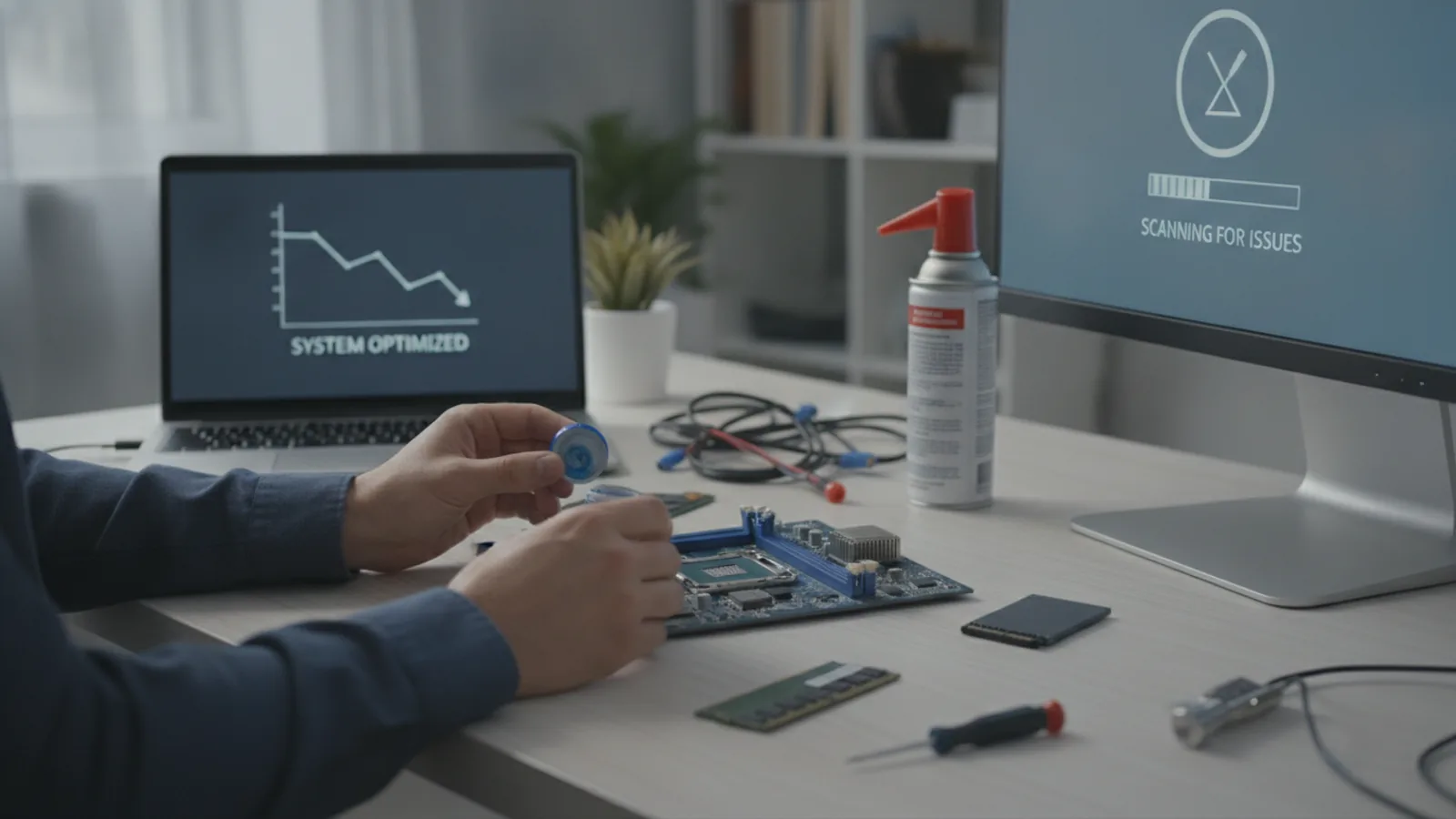
If you've tried all the software fixes and your computer is still unacceptably slow, the problem may be outdated hardware. For many older computers, two hardware upgrades provide the most significant performance boost for the cost: adding more RAM and replacing your HDD with an SSD.
- More RAM (Random Access Memory): RAM is your computer's short-term working memory. If you don't have enough, your computer has to shuffle data back and forth from the much slower hard drive. Upgrading from 4GB to 8GB, or from 8GB to 16GB, can make multitasking much smoother.
- Solid-State Drive (SSD): Replacing a mechanical hard drive with an SSD is often the single best upgrade you can make. SSDs are many times faster, which means your computer will boot up in seconds, programs will launch instantly, and the entire system will feel more responsive.
These upgrades are more involved and require opening your computer case. If you're not comfortable doing this, a local computer repair shop can perform the upgrades for you.
Quick Reference
| Situation | Use this | Why |
|---|---|---|
| Computer takes forever to start up | Disable startup programs | Reduces the number of apps your PC has to load at once. |
| You see "Low disk space" warnings | Run Disk Cleanup & delete old files | Frees up essential space for the operating system to work properly. |
| Web browsing is sluggish and freezes | Clear browser cache & remove extensions | Reduces memory usage and potential conflicts within your browser. |
| The whole PC is suddenly very slow | Scan for malware and viruses | Removes malicious processes that steal system resources in the background. |
| Apps are slow to open and save files | Upgrade from HDD to an SSD | Provides dramatically faster data access for the entire system. |
Common Problems When You Fix A Slow Computer
Even with a clear guide, you can run into issues. Here are a few common problems and how to handle them.
- The computer is still slow after trying everything. If you've completed all the software steps, the issue is likely a hardware limitation or failure. The most common bottlenecks are insufficient RAM (less than 8GB) or an old mechanical hard drive. If the hardware is decent, there could be a deeper issue with the Windows installation itself, which might require using the "Reset this PC" feature (this will reinstall Windows).
- You accidentally deleted an important file. This is why backing up first is so critical. If you've just deleted it, check the Recycle Bin immediately. If it's not there and you don't have a backup, you can try file recovery software, but success is not guaranteed.
- A program won't uninstall properly. Sometimes, an uninstallation process fails, leaving files behind. You can try restarting the computer and attempting to uninstall again. If that fails, some software publishers provide a dedicated "removal tool" for their products. Searching online for "[Program Name] removal tool" can often lead you to a solution.
Advanced Tips for a Faster Computer
If you're comfortable with more technical steps, these tips can help you squeeze out extra performance.
- Check for Overheating. Computers slow down automatically to protect themselves from damage when they get too hot. This can be caused by dust clogging the internal fans and vents. You can use free tools like HWMonitor to check your CPU and GPU temperatures. If they are running high (e.g., over 85-90°C under load), you may need to clean the inside of your computer with compressed air.
- Use the Resource Monitor. To see exactly what's using your system's resources in real-time, open the Task Manager (Ctrl + Shift + Esc), go to the "Performance" tab, and click "Open Resource Monitor." Here you can get a detailed look at your CPU, Memory, Disk, and Network usage, which can help you pinpoint a specific program that is causing a bottleneck.
- Perform a Clean Install of Windows. This is the "nuclear option" and should only be done after backing up all your data. Using the "Reset this PC" feature in Windows Settings allows you to reinstall the operating system from scratch. This removes all accumulated junk, stubborn malware, and software conflicts, giving you a truly fresh start.
How To Fix A Slow Computer FAQ
Why is my computer so slow all of a sudden?
Will adding more RAM make my computer faster?
Does a slow computer mean I have a virus?
How often should I clean up my computer?
Final Checklist for a Faster Computer
- Back Up Data: Always secure your important files first.
- Reboot Regularly: Don't just put your computer to sleep; restart it every couple of days.
- Manage Startup: Disable any unnecessary programs from launching at boot.
- Scan for Malware: Run regular full system scans with Windows Security or another trusted antivirus.
- Free Up Space: Keep at least 15-20% of your primary hard drive free.
- Uninstall Clutter: Remove old software you no longer use.
- Stay Updated: Install all pending operating system and security updates.
- Review Hardware: If software fixes don't work, consider upgrading your RAM or switching to an SSD.